1. 메시지, 국제화 소개
메시지
- 악덕? 기획자가 화면에 보이는 문구가 마음에 들지 않는다고, 상품명이라는 단어를 모두 상품이름으로 고쳐달라고 하면 어떻게 해야할까?
- 여러 화면에 보이는 상품명, 가격, 수량 등, label에 있는 단어를 변경하려면 다음 화면들을 다 찾아가면서 모두 변경해야 한다. 지금처럼 화면 수가 적으면 문제가 되지 않지만 화면이 수십 개 이상이라면 수십 개의 파일을 모두 고쳐야 한다.
- addForm.html, editForm.html, item.html, items.html
왜냐하면 해당 HTML 파일에 메시지가 하드코딩 되어 있기 때문이다.
이런 다양한 메시지를 한 곳에서 관리하도록 하는 기능을 메시지 기능이라 한다.
예를 들어서 messages.properties 라는 메시지 관리용 파일을 만들고 아래와 같이 정의한다.
item=상품
item.id=상품 ID
item.itemName=상품명
item.price=가격
item.quantity=수량
각 HTML들은 다음과 같이 해당 데이터를 key 값으로 불러서 사용하는 것이다.
- addForm.html
<label for="itemName" th:text="#{item.itemName}"></label>- editForm.html
<label for="itemName" th:text="#{item.itemName}"></label>국제화
- 메시지에서 한 발 더 나가보자.
- 메시지에서 설명한 메시지 파일(messages.properties)을 각 나라별로 별도로 관리하면 서비스를 국제화 할 수 있다.
- 예를 들어서 다음과 같이 2개의 파일을 만들어서 분류한다.
📄 파일명: messages_en.properties
item=Item
item.id=Item ID
item.itemName=Item Name
item.price=price
item.quantity=quantity
📄 파일명: messages_ko.properties
item=상품
item.id=상품 ID
item.itemName=상품명
item.price=가격
item.quantity=수량
- 영어를 사용하는 사람이면 messages_en.properties를 사용하고, 한국어를 사용하는 사람이면 messages_ko.properties를 사용하게 개발하면 된다. 이렇게 하면 사이트를 국제화 할 수 있다.
- 한국에서 접근한 것인지 영어에서 접근한 것인지 인식하는 방법은 HTTP Accept-Language 헤더 값을 사용하거나 사용자가 직접 언어를 선택하도록 하고, 쿠키 등을 사용해서 처리하면 된다.
- 메시지와 국제화 기능을 직접 구현할 수도 있겠지만, 스프링은 기본적인 메시지와 국제화 기능을 모두 제공한다. 그리고 타임리프도 스프링이 제공하는 메시지와 국제화 기능을 편리하게 통합해서 제공한다.
2. 스프링 메시지 소스 설정
- 스프링은 기본적인 메시지 관리 기능을 제공한다. 메시지 관리 기능을 사용하려면 스프링이 제공하는 MessageSource를 스프링 빈으로 등록하면 되는데, MessageSource는 인터페이스이다.
- 따라서 구현체인 ResourceBundleMessageSource를 스프링 빈으로 등록하면 된다.
직접 등록 예시
@Bean
public MessageSource messageSource() {
    ResourceBundleMessageSource messageSource = new ResourceBundleMessageSource();
    messageSource.setBasenames("messages", "errors");
    messageSource.setDefaultEncoding("utf-8");
    return messageSource;
}
- basenames: 설정 파일의 이름을 지정한다.
- messages로 지정하면 messages.properties 파일을 읽어서 사용한다.
- 추가로 국제화 기능을 적용하려면 messages_en.properties, messages_ko.properties와 같이 파일명 마지막에 언어 정보를 주면 된다. 만약 찾을 수 있는 국제화 파일이 없으면 messages.properties (언어정보가 없는 파일명)를 기본으로 사용한다.
- 파일의 위치는 /resources/messages.properties에 두면 된다.
- 여러 파일을 한번에 지정할 수 있다. 여기서는 messages, errors 둘을 지정했다.
- defaultEncoding: 인코딩 정보를 지정한다. utf-8을 사용하면 된다.
스프링 부트에서의 자동 설정
스프링 부트를 사용하면 스프링 부트가 MessageSource를 자동으로 스프링 빈으로 등록한다.
스프링 부트 메시지 소스 설정 (application.properties)
spring.messages.basename=messages,config.i18n.messages
스프링 부트 메시지 소스 기본 값
spring.messages.basename=messages
- MessageSource를 스프링 빈으로 직접 등록하지 않고, 스프링 부트와 관련된 별도의 설정을 하지 않으면 messages라는 이름으로 기본 등록된다.
- 따라서 messages_en.properties, messages_ko.properties, messages.properties 파일만 등록하면 자동으로 인식된다.
3. 메시지 파일 만들기
메시지 파일을 만들어보자. 국제화 테스트를 위해서 messages_en 파일도 추가하자.
- messages.properties: 기본 값으로 사용(한글)
- messages_en.properties: 영어 국제화 사용
주의! 파일명은 massage가 아니라 messages다! 마지막 s에 주의하자.
📄 경로: /resources/messages.properties
hello=안녕
hello.name=안녕 {0}
📄 경로: /resources/messages_en.properties
hello=hello
hello.name=hello {0}
💡 한글 깨짐이 발생하는 경우 해결법
인텔리제이에서 한글 깨짐이 발생하면 다음 설정을 확인하자.
- Setting - File Encodings로 이동한다.
- Default encoding for properties files를 ISO-8859-1에서 UTF-8로 변경한다.
- Transparent native-to-ascii conversion 항목에 체크한다.
4. 스프링 메시지 소스 사용
MessageSource 인터페이스 구조
public interface MessageSource {
    String getMessage(String code, @Nullable Object[] args, @Nullable String defaultMessage, Locale locale);
    String getMessage(String code, @Nullable Object[] args, Locale locale) throws NoSuchMessageException;
}
MessageSource 인터페이스를 보면 코드를 포함한 일부 파라미터로 메시지를 읽어오는 기능을 제공한다.
📄 경로: src/test/java/hello/itemservice/message/MessageSourceTest.java
package hello.itemservice.message;

import org.junit.jupiter.api.Test;
import org.springframework.beans.factory.annotation.Autowired;
import org.springframework.boot.test.context.SpringBootTest;
import org.springframework.context.MessageSource;
import org.springframework.context.NoSuchMessageException;

import java.util.Locale;

import static org.assertj.core.api.Assertions.*;

@SpringBootTest
public class MessageSourceTest {

    @Autowired
    MessageSource ms;

    @Test
    void helloMessage() {
        String result = ms.getMessage("hello", null, null);
        assertThat(result).isEqualTo("안녕");
    }

    @Test
    void notFoundMessageCode() {
        assertThatThrownBy(() -> ms.getMessage("no_code", null, null))
                .isInstanceOf(NoSuchMessageException.class);
    }

    @Test
    void notFoundMessageCodeDefaultMessage() {
        String result = ms.getMessage("no_code", null, "기본 메시지", null);
        assertThat(result).isEqualTo("기본 메시지");
    }

    @Test
    void argumentMessage() {
        String result = ms.getMessage("hello.name", new Object[]{"Spring"}, null);
        assertThat(result).isEqualTo("안녕 Spring");
    }

    @Test
    void defaultLang() {
        assertThat(ms.getMessage("hello", null, null)).isEqualTo("안녕");
        assertThat(ms.getMessage("hello", null, Locale.KOREA)).isEqualTo("안녕");
    }

    @Test
    void enLang() {
        assertThat(ms.getMessage("hello", null, Locale.ENGLISH)).isEqualTo("hello");
    }
}
상세 분석 및 테스트 설명
1) ms.getMessage("hello", null, null)
- code: hello
- args: null
- locale: null
- 가장 단순한 테스트는 메시지 코드로 hello를 입력하고 나머지 값은 null을 입력했다.
- locale 정보가 없으면 basename에서 설정한 기본 이름 메시지 파일을 조회한다. basename으로 messages를 지정했으므로 messages.properties 파일에서 데이터를 조회한다.
2) 메시지가 없는 경우와 기본 메시지 처리 (notFoundMessageCode, notFoundMessageCodeDefaultMessage)
- 메시지가 없는 경우에는 NoSuchMessageException이 발생한다.
- 메시지가 없어도 기본 메시지(defaultMessage)를 매개변수로 함께 사용하면 에러 없이 기본 메시지가 반환된다.
3) 매개변수 사용 (argumentMessage)
- 메시지의 {0} 부분은 매개변수를 전달해서 치환할 수 있다.
- hello.name=안녕 {0} ➡️ Spring 단어를 매개변수로 전달 ➡️ 안녕 Spring으로 매핑된다.
4) 국제화 파일 선택 원리
- locale 정보를 기반으로 국제화 파일을 선택한다.
- Locale이 en_US인 경우, messages_en_US ➡️ messages_en ➡️ messages 순서로 찾는다.
- 즉, Locale에 맞추어 가장 구체적인 것이 있으면 먼저 찾고, 없으면 단계별로 상위 범위를 찾다가 디폴트를 찾는다.
- defaultLang():
- ms.getMessage("hello", null, null): locale 정보가 없으므로 messages.properties를 사용한다.
- ms.getMessage("hello", null, Locale.KOREA): locale 정보가 있지만 messages_ko 파일이 없으므로 기본인 messages.properties를 사용한다.
- enLang():
- ms.getMessage("hello", null, Locale.ENGLISH): locale 정보가 Locale.ENGLISH이므로 messages_en을 찾아서 사용한다.
💡 강의 내용 정정 - 영상과 다른 내용 보충Locale 정보가 null인 경우 내부적으로 Locale.getDefault()를 호출해서 시스템의 기본 로케일을 사용합니다.
- 예) locale = null 인 경우 시스템 기본 locale이 ko_KR이므로 messages_ko.properties 조회 시도 ➡️ 조회 실패 ➡️ messages.properties 조회
5. 웹 애플리케이션에 메시지 적용하기
먼저 메시지를 추가 등록하자.
📄 경로: /resources/messages.properties (수정 등록)
hello=안녕
hello.name=안녕 {0}

label.item=상품
label.item.id=상품 ID
label.item.itemName=상품명
label.item.price=가격
label.item.quantity=수량

page.items=상품 목록
page.item=상품 상세
page.addItem=상품 등록
page.updateItem=상품 수정

button.save=저장
button.cancel=취소
타임리프 메시지 적용 문법
타임리프의 메시지 표현식 #{...}를 사용하면 스프링의 메시지를 편리하게 조회할 수 있다. 예를 들어서 방금 등록한 상품이라는 이름을 조회하려면 #{label.item}이라고 하면 된다.
- 렌더링 전
<div th:text="#{label.item}"></h2>- 렌더링 후
<div>상품</h2>타임리프 템플릿 파일 변경 내용
적용할 대상 파일:
- addForm.html
- editForm.html
- item.html
- items.html
📄 경로: /resources/templates/message/addForm.html
<!DOCTYPE HTML>
<html xmlns:th="[http://www.thymeleaf.org](http://www.thymeleaf.org)">
<head>
    <meta charset="utf-8">
    <link th:href="@{/css/bootstrap.min.css}"
          href="../css/bootstrap.min.css" rel="stylesheet">
    <style>
        .container {
            max-width: 560px;
        }
    </style>
</head>
<body>

<div class="container">

    <div class="py-5 text-center">
        <h2 th:text="#{page.addItem}">상품 등록</h2>
    </div>

    <h4 class="mb-3">상품 입력</h4>

    <form action="item.html" th:action th:object="${item}" method="post">
        <div>
            <label for="itemName" th:text="#{label.item.itemName}">상품명</label>
            <input type="text" id="itemName" th:field="*{itemName}" class="form-control" placeholder="이름을 입력하세요">
        </div>
        <div>
            <label for="price" th:text="#{label.item.price}">가격</label>
            <input type="text" id="price" th:field="*{price}" class="form-control" placeholder="가격을 입력하세요">
        </div>
        <div>
            <label for="quantity" th:text="#{label.item.quantity}">수량</label>
            <input type="text" id="quantity" th:field="*{quantity}" class="form-control" placeholder="수량을 입력하세요">
        </div>

        <hr class="my-4">

        <div class="row">
            <div class="col">
                <button class="w-100 btn btn-primary btn-lg" type="submit" th:text="#{button.save}">저장</button>
            </div>
            <div class="col">
                <button class="w-100 btn btn-secondary btn-lg"
                        onclick="location.href='items.html'"
                        th:onclick="|location.href='@{/message/items}'|"
                        type="button" th:text="#{button.cancel}">취소</button>
            </div>
        </div>

    </form>

</div> <!-- /container -->
</body>
</html>
✏️ addForm.html 주요 변경 사항 상세
- 페이지 이름 적용
- 기존: <h2>상품 등록 폼</h2>
- 변경: <h2 th:text="#{page.addItem}">상품 등록</h2>
- 레이블 적용
- <label for="itemName">상품명</label> ➡️ <label for="itemName" th:text="#{label.item.itemName}">상품명</label>
- 가격: th:text="#{label.item.price}"
- 수량: th:text="#{label.item.quantity}"
- 버튼 적용
- 기존: <button type="submit">상품 등록</button>
- 변경: <button type="submit" th:text="#{button.save}">저장</button>
- 취소 버튼: th:text="#{button.cancel}"
📄 경로: /resources/templates/message/editForm.html
<!DOCTYPE HTML>
<html xmlns:th="[http://www.thymeleaf.org](http://www.thymeleaf.org)">
<head>
    <meta charset="utf-8">
    <link th:href="@{/css/bootstrap.min.css}"
          href="../css/bootstrap.min.css" rel="stylesheet">
    <style>
        .container {
            max-width: 560px;
        }
    </style>
</head>
<body>

<div class="container">

    <div class="py-5 text-center">
        <h2 th:text="#{page.updateItem}">상품 수정</h2>
    </div>

    <form action="item.html" th:action th:object="${item}" method="post">
        <div>
            <label for="id" th:text="#{label.item.id}">상품 ID</label>
            <input type="text" id="id" th:field="*{id}" class="form-control" readonly>
        </div>
        <div>
            <label for="itemName" th:text="#{label.item.itemName}">상품명</label>
            <input type="text" id="itemName" th:field="*{itemName}" class="form-control">
        </div>
        <div>
            <label for="price" th:text="#{label.item.price}">가격</label>
            <input type="text" id="price" th:field="*{price}" class="form-control">
        </div>
        <div>
            <label for="quantity" th:text="#{label.item.quantity}">수량</label>
            <input type="text" id="quantity" th:field="*{quantity}" class="form-control">
        </div>

        <hr class="my-4">

        <div class="row">
            <div class="col">
                <button class="w-100 btn btn-primary btn-lg" type="submit" th:text="#{button.save}">저장</button>
            </div>
            <div class="col">
                <button class="w-100 btn btn-secondary btn-lg"
                        onclick="location.href='item.html'"
                        th:onclick="|location.href='@{/message/items/{itemId}(itemId=${item.id})}'|"
                        type="button" th:text="#{button.cancel}">취소</button>
            </div>
        </div>

    </form>

</div> <!-- /container -->
</body>
</html>
📄 경로: /resources/templates/message/item.html
<!DOCTYPE HTML>
<html xmlns:th="[http://www.thymeleaf.org](http://www.thymeleaf.org)">
<head>
    <meta charset="utf-8">
    <link th:href="@{/css/bootstrap.min.css}"
          href="../css/bootstrap.min.css" rel="stylesheet">
    <style>
        .container {
            max-width: 560px;
        }
    </style>
</head>
<body>

<div class="container">

    <div class="py-5 text-center">
        <h2 th:text="#{page.item}">상품 상세</h2>
    </div>

    <!-- 추가 -->
    <h2 th:if="${param.status}" th:text="'저장 완료'"></h2>

    <div>
        <label for="itemId" th:text="#{label.item.id}">상품 ID</label>
        <input type="text" id="itemId" name="itemId" class="form-control" value="1" th:value="${item.id}" readonly>
    </div>
    <div>
        <label for="itemName" th:text="#{label.item.itemName}">상품명</label>
        <input type="text" id="itemName" name="itemName" class="form-control" value="상품A" th:value="${item.itemName}" readonly>
    </div>
    <div>
        <label for="price" th:text="#{label.item.price}">가격</label>
        <input type="text" id="price" name="price" class="form-control" value="10000" th:value="${item.price}" readonly>
    </div>
    <div>
        <label for="quantity" th:text="#{label.item.quantity}">수량</label>
        <input type="text" id="quantity" name="quantity" class="form-control" value="10" th:value="${item.quantity}" readonly>
    </div>

    <hr class="my-4">

    <div class="row">
        <div class="col">
            <button class="w-100 btn btn-primary btn-lg"
                    onclick="location.href='editForm.html'"
                    th:onclick="|location.href='@{/message/items/{itemId}/edit(itemId=${item.id})}'|"
                    type="button" th:text="#{page.updateItem}">상품 수정</button>
        </div>
        <div class="col">
            <button class="w-100 btn btn-secondary btn-lg"
                    onclick="location.href='items.html'"
                    th:onclick="|location.href='@{/message/items}'|"
                    type="button" th:text="#{page.items}">목록으로</button>
        </div>
    </div>

</div> <!-- /container -->
</body>
</html>
📄 경로: /resources/templates/message/items.html
<!DOCTYPE HTML>
<html xmlns:th="[http://www.thymeleaf.org](http://www.thymeleaf.org)">
<head>
    <meta charset="utf-8">
    <link th:href="@{/css/bootstrap.min.css}"
          href="../css/bootstrap.min.css" rel="stylesheet">
</head>
<body>

<div class="container" style="max-width: 600px">
    <div class="py-5 text-center">
        <h2 th:text="#{page.items}">상품 목록</h2>
    </div>

    <div class="row">
        <div class="col">
            <button class="btn btn-primary float-end"
                    onclick="location.href='addForm.html'"
                    th:onclick="|location.href='@{/message/items/add}'|"
                    type="button" th:text="#{page.addItem}">상품 등록</button>
        </div>
    </div>

    <hr class="my-4">

    <div>
        <table class="table">
            <thead>
            <tr>
                <th th:text="#{label.item.id}">ID</th>
                <th th:text="#{label.item.itemName}">상품명</th>
                <th th:text="#{label.item.price}">가격</th>
                <th th:text="#{label.item.quantity}">수량</th>
            </tr>
            </thead>
            <tbody>
            <tr th:each="item : ${items}">
                <td><a href="item.html" th:href="@{/message/items/{itemId}(itemId=${item.id})}" th:text="${item.id}">회원id</a></td>
                <td><a href="item.html" th:href="@{|/message/items/${item.id}|}" th:text="${item.itemName}">상품명</a></td>
                <td th:text="${item.price}">10000</td>
                <td th:text="${item.quantity}">10</td>
            </tr>
            </tbody>
        </table>
    </div>

</div> <!-- /container -->
</body>
</html>
✏️ items.html 테이블 헤더 변경 상세
<!-- 변경 전 -->
<th>ID</th>
<th>상품명</th>
<th>가격</th>
<th>수량</th>

<!-- 변경 후 -->
<th th:text="#{label.item.id}">ID</th>
<th th:text="#{label.item.itemName}">상품명</th>
<th th:text="#{label.item.price}">가격</th>
<th th:text="#{label.item.quantity}">수량</th>
실행 및 테스트
- 잘 동작하는지 확인하기 위해 messages.properties 파일의 내용을 가격
➡️ 금액과 같이 임의로 변경해서 확인해 보자. 정상 동작이 확인되면 원래대로 되돌려 두자.
💡 참고: 타임리프에서 파라미터 전달 방법
메시지에 파라미터가 필요한 경우 다음과 같이 타임리프 메시지 표현식에 파라미터를 넘겨줄 수 있다.
- properties 정의: hello.name=안녕 {0}
- 타임리프 사용 예시:
<p th:text="#{hello.name(${item.itemName})}"></p>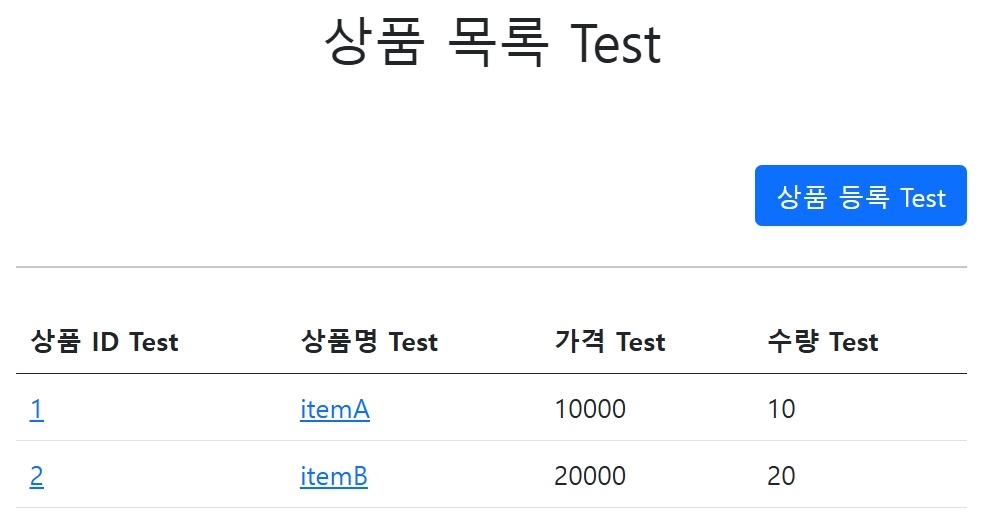
6. 웹 애플리케이션에 국제화 적용하기
- 타임리프 파일들에 이미 #{...}를 통해 메시지 표현식을 사용하도록 설정했기 때문에, 이제 영어 메시지 파일만 추가해 주면 모든 국제화 작업이 끝난다.
📄 경로: /resources/messages_en.properties
hello=hello
hello.name=hello {0}

label.item=Item
label.item.id=Item ID
label.item.itemName=Item Name
label.item.price=price
label.item.quantity=quantity

page.items=Item List
page.item=Item Detail
page.addItem=Item Add
page.updateItem=Item Update

button.save=Save
button.cancel=Cancel
웹에서 동작 확인하기
- 웹 브라우저의 언어 설정 값을 변경하면서 국제화 적용을 직접 확인해 본다.

- 크롬 브라우저 ➡️ 설정 ➡️ 언어로 이동한다.
- 우선순위 언어를 영어(English)로 변경하고 최상위로 올린다.
- 브라우저 새로고침 후 페이지를 테스트해 본다.
- 웹 브라우저의 언어 설정 값을 변경하면 브라우저가 요청 시 전송하는 HTTP Accept-Language 헤더의 값이 함께 변경된다.
- Accept-Language는 클라이언트가 서버에 기대하는 언어 정보를 담아서 요청하는 HTTP 요청 헤더이다.
스프링의 국제화 메시지 선택

- 메시지 기능은 Locale 정보를 알아야 그에 맞는 언어를 선택하여 화면에 노출해 줄 수 있다.
- 스프링은 기본적으로 HTTP 요청 헤더의 Accept-Language 값을 활용하여 Locale을 선택하게 된다.
LocaleResolver
- 스프링은 개발자가 Locale 선택 방식을 자유롭게 변경할 수 있도록 LocaleResolver라는 인터페이스를 제공한다.
- 스프링 부트는 기본적으로 Accept-Language 헤더를 활용하는 AcceptHeaderLocaleResolver를 사용하도록 설정되어 있다.
LocaleResolver 인터페이스 구조
public interface LocaleResolver {
    Locale resolveLocale(HttpServletRequest request);
    void setLocale(HttpServletRequest request, @Nullable HttpServletResponse response, @Nullable Locale locale);
}
LocaleResolver 변경하기
- 만약 Accept-Language 헤더가 아니라 세션이나 쿠키 기반으로 언어를 변경 및 유지하고 싶다면, LocaleResolver의 구현체를 교체하여 사용할 수 있다. (예: 사용자가 직접 화면 상단에서 한국어/영어 국기를 클릭하여 직접 Locale을 선택하도록 구현하는 경우)
'INFLEARN' 카테고리의 다른 글
| [스프링 MVC 2편 - 백엔드 웹 개발 핵심 기술] 4. 검증1 - Validation (0) | 2026.05.31 |
|---|---|
| [스프링 MVC 2편 - 백엔드 웹 개발 핵심 기술] 2. 타임리프 - 스프링 통합과 폼 (0) | 2026.05.26 |
| [스프링 MVC 2편 - 백엔드 웹 개발 핵심 기술] 1. 타임리프(Thymeleaf) 기본 기능 (0) | 2026.05.02 |
| [스프링 MVC 1편 - 백엔드 웹 개발 핵심 기술] 8. 스프링 MVC - 웹 페이지 만들기 (0) | 2026.04.23 |
| [스프링 MVC 1편 - 백엔드 웹 개발 핵심 기술] 7. 스프링 MVC - 기본 기능 (0) | 2026.04.19 |